Apple Pencil for Students: How Easy Is Note-Taking on iPad?
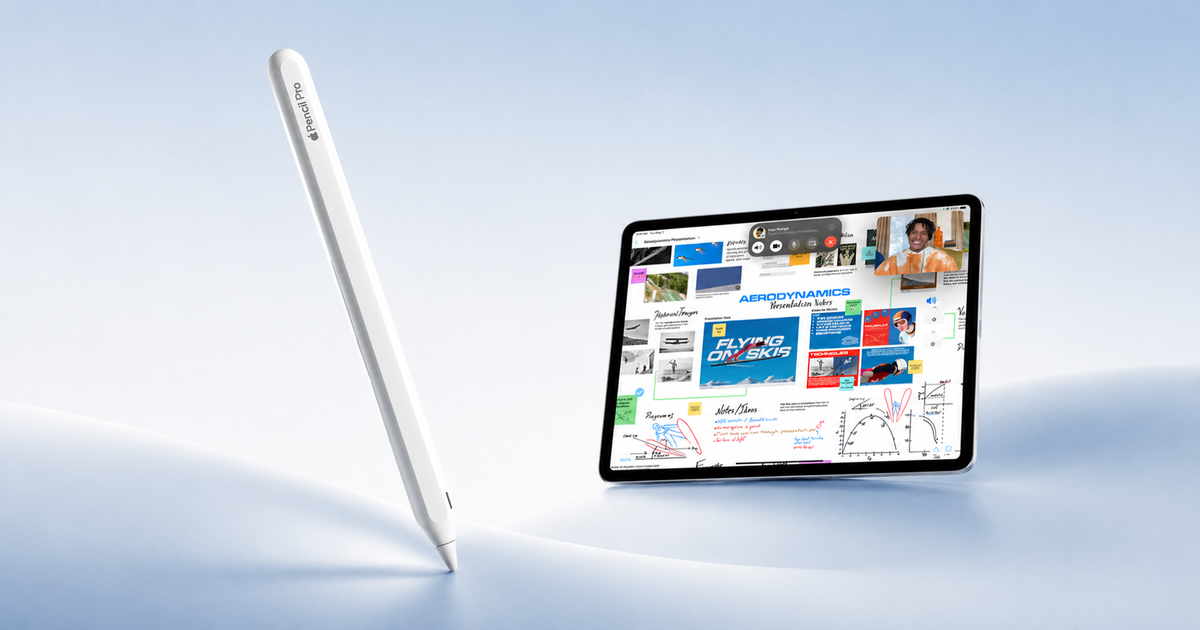
For students, note-taking is one of those everyday tasks that can quickly become frustrating. You need to write fast enough to keep up with a lecture, organize notes later, mark important sections in PDFs, and still be able to find everything before an exam.
An iPad with an Apple Pencil promises to make that process easier. Instead of carrying notebooks, textbooks, printed assignments, and loose sheets, you can keep handwritten notes, PDFs, diagrams, and study material in one device.
But how easy is it in real student use? Does writing on an iPad actually feel natural? Is the Apple Pencil worth buying if your main goal is taking notes? And which Apple Pencil should students choose?
The short answer is that Apple Pencil makes iPad-based note-taking remarkably easy, but the experience depends heavily on the iPad model, Apple Pencil model, and note-taking app you use.
Here is what students should know before making the switch.
Why Students Are Moving from Paper to iPad
The biggest advantage of digital note-taking is not simply that you can write with a stylus. It is that your notes become part of a larger digital workflow.
With an iPad, you can write directly on lecture slides, annotate PDFs, add diagrams to handwritten notes, search through documents, move sections around, and keep different subjects organized without carrying multiple notebooks.
Apple itself highlights several student-focused uses for Apple Pencil, including converting handwriting to text, marking up PDFs, and solving equations with Calculator and Math Notes.
That makes the iPad particularly useful for subjects where handwriting still matters.
A biology student might annotate an anatomy diagram. An engineering student can sketch equations and technical drawings. A mathematics student can work through calculations by hand. A law student can highlight and annotate lengthy PDFs. A business student can combine typed research with handwritten ideas.
You are not limited to one method of taking notes.
How Natural Does Apple Pencil Note-Taking Feel?
This is probably the first question students have.
Writing on glass is not exactly the same as writing on paper. There is less friction, and the surface feels smoother. However, Apple's current Pencil models are designed to make the digital writing experience responsive and precise.
Apple Pencil USB-C offers pixel-level precision, low latency, and tilt sensitivity. Apple says it is designed to feel natural and responsive for tasks such as note-taking and marking up documents.
The low latency is particularly important when taking notes.
If there were a noticeable delay between moving the Pencil and seeing your handwriting appear, writing quickly would feel awkward. With a supported iPad and compatible Pencil, the response is fast enough that handwriting generally feels immediate.
You also get palm rejection, so you can rest your hand on the iPad while writing instead of keeping your palm raised above the screen.
For students who already prefer handwritten notes, the learning curve is therefore fairly small. You still hold the Pencil like a normal pen and write normally. The biggest adjustment is getting used to the smoother glass surface.
Handwriting, Typing, or Both?
The best part of an iPad for students is that you do not have to choose.
You can type a lecture heading, switch to handwriting for an explanation, insert a screenshot, draw an arrow, and then return to typing.
That flexibility is useful because different types of information are easier to record in different ways.
For example:
Lecture heading: Type it.
Definition: Type or handwrite it.
Mathematical equation: Write it by hand.
Diagram: Draw it.
Professor's presentation: Import the PDF and annotate it.
Personal reminder: Scribble it in the margin.
This mixed approach is where the iPad becomes more useful than a traditional notebook.
Apple Pencil Makes PDF Annotation Much Easier
Students deal with PDFs constantly. Lecture slides, research papers, assignments, textbooks, reading material, and worksheets can all end up as PDFs.
Instead of downloading a PDF, printing it, writing on it, scanning it, and then uploading it again, you can annotate it directly on your iPad.
You can highlight text, underline important sections, add handwritten comments, draw arrows, and write explanations alongside the material.
Apple specifically promotes Apple Pencil for marking up PDFs for class.
This can also make revision more efficient.
Imagine studying a 50-page lecture document. Rather than keeping separate handwritten notes about the document, you can place your explanations directly beside the relevant sections.
When exam preparation starts, you have the original material and your notes together.
Handwriting-to-Text Is Another Useful Feature
Handwriting does not have to remain handwritten.
iPadOS supports handwriting recognition, allowing compatible features and apps to turn handwritten input into typed text.
This can be useful when you initially want to write naturally but later need a clean digital document.
For example, you might write rough ideas during a lecture and convert selected sections into typed text later.
It is particularly useful for students who think faster with a pen but eventually need to submit typed assignments.
However, handwriting recognition is not magic. Accuracy can depend on how clearly you write, the language being used, and the software involved. You should always review converted text before submitting academic work.
What About Math and Equations?
This is an area where an Apple Pencil can be particularly useful.
Typing equations on a touchscreen keyboard can be slow and frustrating. Writing them by hand is usually much faster.
Apple's Math Notes feature lets users work with mathematical expressions using handwriting and compatible iPad features. Apple specifically lists solving equations as one of the student-focused uses of Apple Pencil.
For students studying mathematics, physics, engineering, economics, or other subjects involving formulas, handwriting equations can therefore feel much more natural than typing them.
You can write an equation, work through the steps, erase part of it, and continue without changing your normal problem-solving process.
Apple Pencil Pro vs Apple Pencil USB-C for Students
This is where students should pay attention.
Apple currently offers different Apple Pencil models, and they do not have identical features.
The Apple Pencil USB-C is the straightforward option. It provides pixel-perfect precision, low latency, and tilt sensitivity. It pairs and charges through USB-C and magnetically attaches to compatible iPads for storage.
The Apple Pencil Pro adds more advanced features, including pressure sensitivity, double-tap tool switching, squeeze, barrel roll, haptic feedback, and Find My support. It also pairs, charges, and stores magnetically on compatible iPads.
For ordinary note-taking, however, you do not necessarily need every Pro feature.
Apple Pencil USB-C
For most students, the USB-C model covers the basics:
- Handwritten notes
- PDF annotation
- Highlighting
- Diagrams
- Journaling
- Sketching
- Basic academic work
- Handwriting input
It is also lighter at 20.5 grams and has a USB-C connection for charging.
One important limitation is that the USB-C model does not have pressure sensitivity. Apple lists pressure sensitivity for Apple Pencil Pro but not for Apple Pencil USB-C.
For note-taking, this is unlikely to be a deal-breaker.
Apple Pencil Pro
The Pro makes more sense for students who also do creative or technical work.
If you study architecture, industrial design, illustration, animation, or another field where detailed drawing matters, pressure sensitivity, barrel roll, squeeze, and haptic feedback can become more valuable.
Apple Pencil Pro also supports Find My, which can be useful because a small white stylus is remarkably easy to lose in a backpack or classroom.
For someone who primarily writes lecture notes, though, the extra features may not justify paying more.
Compatibility Matters More Than the Pencil
There is one mistake students should avoid: buying the Pencil first and checking compatibility later.
Apple Pencil compatibility varies between iPad models.
For example, Apple Pencil Pro works with current iPad Pro models, current iPad Air models, and the iPad mini with A17 Pro. Apple Pencil USB-C supports a wider range of recent and previous-generation iPads, including the iPad with A16, iPad 10th generation, several iPad Air and iPad Pro generations, and iPad mini 6th generation.
Older iPads can support older Apple Pencil generations instead.
So before buying, check your exact iPad model rather than assuming that every Apple Pencil works with every iPad.
Apple recommends checking Settings > General > About > Model Name if you are unsure which iPad you have.
This is especially important if you are buying a used or older iPad for college.
Which Apps Should Students Use?
The Apple Pencil is only part of the note-taking setup. The app you choose can significantly change the experience.
Apple's own Notes app is enough for straightforward note-taking. It is useful when you want something simple without spending time learning a complicated system.
For students who want more advanced organization, third-party apps such as Goodnotes can provide additional tools for notebooks, handwriting, PDF annotation, and study organization. Apple itself features Goodnotes in its college-student education materials.
The right app depends on how you study.
If you want quick handwritten notes, keep things simple.
If you manage hundreds of pages of lecture material, a dedicated note-taking app may be worth considering.
If your course relies heavily on PDFs, choose an app that makes annotation and document management easy.
Can an iPad Replace Notebooks Completely?
For many students, yes. But it depends on their workflow.
An iPad can store a large amount of study material without the physical bulk of multiple notebooks. It can also make it easier to keep notes organized by subject, semester, or course.
You can search through digital content, duplicate pages, rearrange information, and back up your work.
But there are still reasons to keep paper around.
Some students simply remember information better when writing on paper. Others prefer paper for long study sessions because it has no notifications, apps, or battery requirements.
There is also the cost of the complete setup.
If you already own a compatible iPad, adding an Apple Pencil can make a lot of sense.
If you are buying an iPad, Pencil, keyboard, case, and other accessories specifically for note-taking, the total investment becomes considerably higher than buying notebooks.
The right question is therefore not "Is iPad better than paper?"
It is "Will digital note-taking make my study workflow easier?"
How Easy Is It to Organize Notes?
This is arguably one of the strongest reasons to use an iPad.
A physical notebook has a fixed structure. Once you have written something on page 20, it stays on page 20.
Digital notes are more flexible.
You can move pages, add new sections, duplicate templates, insert images, annotate lecture slides, and keep supporting material with the relevant topic.
For students who take notes across several subjects, this can reduce the clutter that comes with separate notebooks.
It also helps during exam preparation. Instead of searching through several notebooks for one formula or definition, you can keep the material organized digitally.
Does Apple Pencil Improve Productivity?
It can, but there is an important distinction.
Apple Pencil does not automatically make someone a better student. It simply removes some friction from common study tasks.
The biggest productivity gains usually come from combining several functions:
Read → annotate → organize → revise
For example, you can download lecture material, annotate it during class, add your own handwritten explanations, organize it by subject, and return to the same material when revising.
That workflow can be much cleaner than managing separate printed documents and handwritten notebooks.
Apple also positions iPad as an education device that supports different learning styles and workflows, including handwriting, creativity, accessibility, and third-party apps.
What Are the Downsides?
Apple Pencil is not perfect.
The first issue is cost. The Pencil is an additional accessory, and students on a budget need to account for it when calculating the total price of an iPad setup.
The second is battery dependence. A notebook never needs charging. Your iPad and Pencil do.
The third is the glass surface. Even though Apple Pencil has low latency and precise tracking, some people still prefer the friction and tactile feedback of paper.
The fourth is compatibility. Different iPads support different Apple Pencil models, so choosing the wrong combination can be an expensive mistake.
Finally, digital devices can introduce distractions. An iPad gives you access to entertainment, social media, games, and the internet alongside your lecture notes. Students who struggle with digital distractions may find paper more effective.
Is Apple Pencil Worth It for Students?
For students who already own a compatible iPad, yes, an Apple Pencil can be one of the most useful accessories they buy.
It is especially valuable if your coursework involves handwritten notes, equations, diagrams, PDF annotation, or frequent reading of digital material.
The Apple Pencil USB-C is enough for most students who primarily want to take notes. The Apple Pencil Pro becomes more compelling if you also need advanced drawing and creative features.
The important thing is to choose the Pencil based on your actual coursework rather than simply buying the most expensive model.
Apple's current education materials also show how broadly iPad and Apple Pencil can be used across subjects, including neuroscience, engineering, biology, marketing, and natural sciences.
Final Verdict: Is Note-Taking on iPad Really That Easy?
Once the setup is right, yes.
The combination of iPad and Apple Pencil comes close to replacing the traditional notebook while adding capabilities paper simply cannot offer.
You can write naturally, annotate PDFs, draw diagrams, work through equations, convert handwriting to text, organize pages, and keep your study material in one place.
The biggest advantage is not that Apple Pencil makes handwriting digital. It is that your handwriting becomes part of a flexible digital study system.
For a student who already uses an iPad, that can make everyday studying noticeably more convenient.
If you are buying an iPad specifically for college, however, consider the entire setup and your actual study habits before spending the money.
For straightforward note-taking, the Apple Pencil USB-C is likely enough. For students who combine note-taking with professional creative work, the Apple Pencil Pro offers considerably more.
At CHIPS, students can find Apple iPads and Apple Pencil options as part of a wider range of devices and accessories for study and everyday use.
FAQs
1. Is Apple Pencil good for taking college notes?
Yes. Apple Pencil is particularly useful for handwritten lecture notes, diagrams, mathematical equations, and PDF annotation. Apple's education materials specifically highlight handwritten notes, PDF markup, and equation solving as student use cases.
2. Does Apple Pencil feel like writing on paper?
It feels very responsive because supported Apple Pencil models offer low latency and pixel-perfect precision. However, the smooth glass surface does feel different from paper.
3. Is Apple Pencil USB-C enough for students?
For most students who primarily take notes, annotate PDFs, and draw simple diagrams, yes. It provides pixel-perfect precision, low latency, and tilt sensitivity.
4. Do I need Apple Pencil Pro for note-taking?
No. Apple Pencil Pro adds features such as pressure sensitivity, squeeze, barrel roll, haptic feedback, and Find My. These are more useful for advanced creative work than basic note-taking.
5. Can Apple Pencil convert handwriting into text?
Yes. iPad supports handwriting-to-text capabilities, allowing students to use handwriting while also working with typed text. Apple highlights this capability as part of its student-focused iPad experience.
6. Can I write on PDFs with Apple Pencil?
Yes. Apple Pencil can be used to mark up compatible PDFs, making it useful for lecture slides, worksheets, reading material, and assignments.
7. Which Apple Pencil works with my iPad?
It depends on the exact iPad model. Apple Pencil Pro, Apple Pencil USB-C, and older Apple Pencil generations have different compatibility lists. Check your iPad's model name before purchasing.
8. Can Apple Pencil replace a notebook?
For many students, it can. An iPad can store and organize handwritten notes, PDFs, diagrams, and other study material in one place. However, students who prefer paper's tactile feel or want to avoid screen distractions may still prefer physical notebooks.
9. Is an iPad with Apple Pencil good for mathematics?
Yes. Handwriting is often more convenient than typing equations, and Apple's Math Notes features are designed to support mathematical work on compatible iPads.
10. Should students buy an iPad just for Apple Pencil?
Not necessarily. If note-taking is your only requirement, paper or a less expensive tablet may be sufficient. An iPad becomes more compelling when you also want digital textbooks, PDF annotation, research, multitasking, creative apps, and other study tools.
11. Does Apple Pencil need to be charged?
Yes. The charging method depends on the model. Apple Pencil USB-C pairs and charges through USB-C, while Apple Pencil Pro pairs and charges wirelessly when attached magnetically to a compatible iPad.
12. Is Apple Pencil worth buying for students?
If you regularly handwrite notes, annotate PDFs, draw diagrams, or solve equations, it can be a very useful investment. The key is choosing a compatible Pencil model that matches your needs rather than automatically choosing the most expensive option.